Google has updated the Gemini app with two big changes. The assistant can learn from your past chats to shape future replies, and there is a new privacy control called Temporary Chats for quick conversations that do not affect your history.
The update was announced on August 13, 2025. It will begin rolling out in select countries and expand in the weeks ahead.
The changes are meant to make the assistant feel more personal while giving you clearer choices about what gets stored and how your data is used.
The company is also renaming Gemini Apps Activity to Keep Activity and adding a separate opt-in for using audio, video, and screen shares to improve services.
A Smarter Chat That Remembers, With a Switch You Control
The headline feature is a setting that lets Gemini reference your past conversations. Turn it on, and the assistant can note your preferences so future answers fit your style and interests.
Google frames it as a way to make back-and-forth feel more natural, like a partner that already knows your background. The feature launches first on the 2.5 Pro model in limited regions, with plans to add 2.5 Flash and more countries soon.
This memory is on by default, which means most people will experience it the moment the update reaches their device. If you prefer to keep each session fresh, you can switch it off.
The path is Settings > Personal context > Your past chats with Gemini.
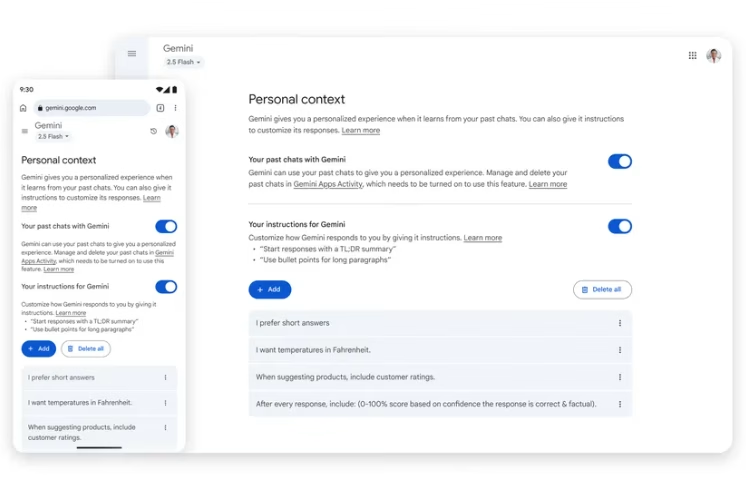
You also keep the ability to review or delete conversations in Gemini Apps Activity, which is being renamed to Keep Activity.
I like the clarity of calling out where the control lives. It reduces guesswork and makes it simpler to decide what you want the assistant to remember. Defaults matter, though.
With memory on by default, users who do not explore settings may grant more context than they intended. Clear language in the app and an easy off switch help balance that.
Quick Chats That Do Not Linger
Temporary Chats are for one-off questions or sensitive brainstorming you do not want tied to your profile. Start one, and it will not appear in recent chats or in the activity view.
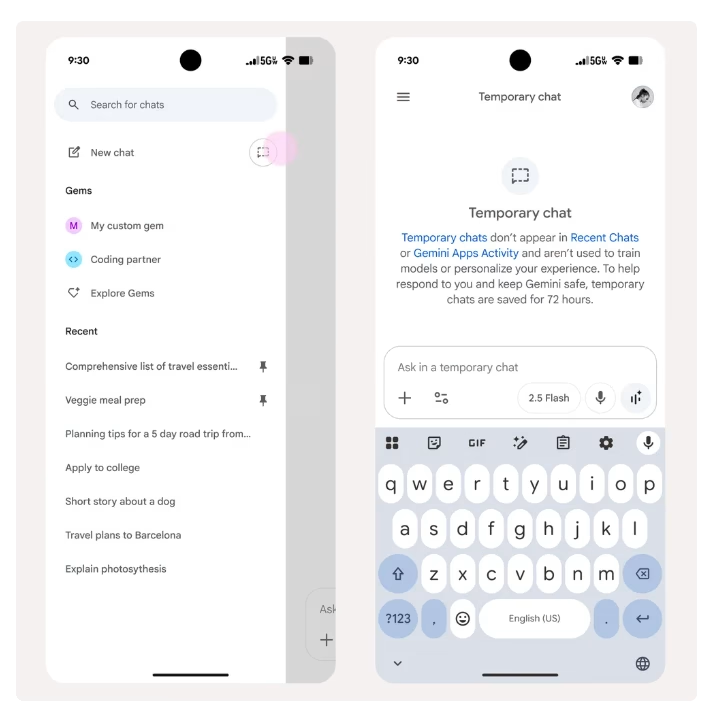
Content from a temporary session is not used to personalize your account and is not used to train Google’s models.
The session remains active for up to 72 hours, allowing the system to respond and process any feedback you choose to submit. After that window, it is cleared.
This is the middle path many users have asked for. You still get help in the moment, yet the conversation does not shape future responses.
How to personalize your @Geminiapp, announcing 2 features you wanted:
1) Personalize based on your past chats, so you don’t have to repeat things
2) Use Temporary Chats for conversations you don’t want savedBoth rolling out now for everyone, starting on 2.5 Pro model… enjoy! pic.twitter.com/EqOpTYfJAe
— Josh Woodward (@joshwoodward) August 13, 2025
I really appreciate that the company clearly states its purpose and limits, including the retention period and the assurance that temporary content is excluded from personalization and training. Those details help people judge whether a temporary chat is right for a given task.
New Names and New Knobs in Settings
Alongside the chat features, Google is changing how it labels and handles some data choices. Gemini Apps Activity is being renamed to Keep Activity.
When Keep Activity is on, a sample of future uploads, such as files and photos, may be used to help improve Google services for everyone. If you prefer otherwise, turn it off or use Temporary Chats. If your activity setting is currently off, it stays off after the rename.
There is also a separate control for whether audio, video, and screen shares that you provide through the mic button or Gemini Live can be used to improve services more broadly. That media setting is off by default, and you can switch it on at any time. Google points to the Gemini Apps Privacy Hub for explanations of what each setting does.
Renaming activity to Keep Activity seems minor at first glance, yet names shape perception.
The new label spells out what the toggle does in plainer terms. Pairing that with a default off state for media use keeps consent explicit for sensitive content like your voice or a screen recording.
How Does This Land for Everyday Use
These features pull in directions that often feel at odds. The assistant promises more helpful answers by remembering your tastes and context. At the same time, it gives you fast ways to keep certain chats isolated and a clear route to limit how uploads and media are used.
The balance is not perfect for every person, and that is the point. Control belongs to the user, not the system.
As a reader who pays close attention to data choices, I see three practical benefits.
First, a less repetitive set up. If you routinely ask for book summaries or birthday ideas, you should not have to restate your preferences every time.
Second, a private scratch pad for sensitive work. Temporary Chats give you space to test a thought without leaving a trail in your account.
Third, simpler mental models. One toggle for memory, another for activity storage, and a distinct switch for media use. Each serves a different purpose, and their functions are explained in the app and the privacy hub.
The rollout plan matters as well. A staged release across models and countries allows the company to monitor for bugs or unusual behaviors before expanding. That lowers the risk of surprise outcomes and gives time to refine how memory summarizes your preferences.
Where the Update Could Move the Conversation Next
Personalized assistants rely on context. The more an AI understands your habits, the better it can anticipate needs.
The risk is that memory can outpace comfort if people do not feel in control. This update tries to make that control visible.
You can keep memory on, switch it off, or step into a temporary session that stays separate. You can also block broader use of your uploads and media, or opt in if you want to contribute to improvement efforts.
There are open questions worth watching. How precisely does the app summarize personal context? How easy is it to edit or forget a specific preference that no longer applies?
The official post underscores that you can manage and delete conversations, which is a strong start. A future refinement could allow people to see and edit the assistant’s short list of “known facts” about them, much like a profile. That would make memory feel less opaque and more collaborative.
Temporary Chats also raise interesting use cases. A teacher might use a temporary session to sketch quiz ideas without saving anything to the account. A researcher could test prompts without adding those topics to the assistant’s sense of their interests. A parent can ask health-related questions and then let the session fade after it serves its purpose.
The fact that these chats do not appear in recent history reduces the chance of them showing up on a shared device. The 72-hour retention window is long enough to keep a thread going for a day or two, yet short enough to reassure people who want quick privacy.
On the settings front, renaming to ‘Keep Activity’ may help curb confusion. Many users are aware that activity pages exist, but do not always know what they control. A name that states the action invites fewer misreads. The separate media control, defaulted to off, respects the higher sensitivity of the microphone and screen input. Clear defaults build trust.
Try This Now
- Check whether personal context is on. Open Gemini, go to Settings, select Personal context, then choose Your past chats with Gemini. Decide whether you want memory on for day-to-day use. You can change this at any time.
- Start a Temporary Chat for sensitive questions. Use it for quick brainstorming, private topics, or anything you do not want shaping future replies. Remember that the session is kept up to 72 hours for response handling and feedback, then cleared.
- Review Keep Activity. Look for the renamed setting in the coming weeks. If it is on, understand that a sample of future uploads may be used to improve Google services. If you prefer to skip that, turn it off or stay in Temporary Chats for those tasks.
- Decide on media sharing. In the mic or Gemini Live settings, find the control for using audio, video, and screen shares to improve services. It is off by default. Turn it on only if you are comfortable contributing that data.
- Get familiar with the privacy hub. Use the Gemini Apps Privacy Hub to read through what each setting does and how data flows. Small investments in understanding your options pay off in confidence later.
Key Takeaways
- Personal context lets Gemini learn from your past chats to personalize responses, and it starts rolling out on the 2.5 Pro model in select countries. Expansion to 2.5 Flash and more regions is planned.
- Memory is on by default. You can turn it off in Settings under Personal context and still manage or delete past conversations.
- Temporary Chats do not appear in recent chats or activity, are excluded from personalization and training, and are kept up to 72 hours to support responses and feedback.
- Gemini Apps Activity is being renamed to Keep Activity. When on, a sample of future uploads may be used to improve services. You can turn it off.
- A separate control governs whether your audio, video, and screen shares are used to improve services, and that media control is off by default

Dileep Thekkethil
AuthorDileep Thekkethil is the Director of Marketing at Stan Ventures, where he applies over 15 years of SEO and digital marketing expertise to drive growth and authority. A former journalist with six years of experience, he combines strategic storytelling with technical know-how to help brands navigate the shift toward AI-driven search and generative engines. Dileep is a strong advocate for Google’s EEAT standards, regularly sharing real-world use cases and scenarios to demystify complex marketing trends. He is an avid gardener of tropical fruits, a motor enthusiast, and a dedicated caretaker of his pair of cockatiels.
