


How to Track Keywords in Google Analytics
Reading Time: 8 min read

Written by Ananyaa
- Updated on Jan 30, 2026

Table of Contents

Tracking keywords sounds simple until you actually try doing it the right way.
A majority of website owners and SEOs often look at rankings, maybe export a report, and assume they understand what’s working. But in reality, rankings alone don’t tell you whether a keyword is pulling the right traffic or just inflating numbers that look good on reports.
That’s where Google Analytics changes the way you look at keyword tracking.
Once you get to know how to find keywords in Google Analytics, you stop treating keywords as isolated metrics and start looking at productive outcomes, including engagement, conversions and ROI impact.
In this blog, I’ll explain how to track keywords in Google Analytics one step at a time, without overwhelming you.
Let’s get started.
Too Busy to Read? Listen to the Deep Dive
Why You Should Use Google Analytics to Track Keywords
If you just track keyword rankings, you only see half the picture.
A keyword can rank on page one and still do nothing for your business. It can bring traffic that bounces, doesn’t engage, and never converts. Rankings won’t tell you that, but Google Analytics will. That’s the real role of Google Analytics in keyword tracking.
But remember, Google Analytics doesn’t collect organic search queries on its own. That data comes from Google Search Console. When you connect Search Console with GA4, you get the full story.
- Search Console tells you which queries trigger impressions and clicks.
- Google Analytics tells you what users do after they land on your site.
That’s the difference between tracking keywords for reporting and tracking keywords to make well-informed SEO decisions.
How to Track Keywords in Google Analytics (Step-By-Step)
Here’s how to track keywords in Google Analytics. Make sure you execute it one step at a time.
Step 1: Link Google Search Console to Google Analytics
To track keywords in Google Search Console properly (and make that data usable inside GA4), you first need to connect the two platforms. This takes just a few minutes.
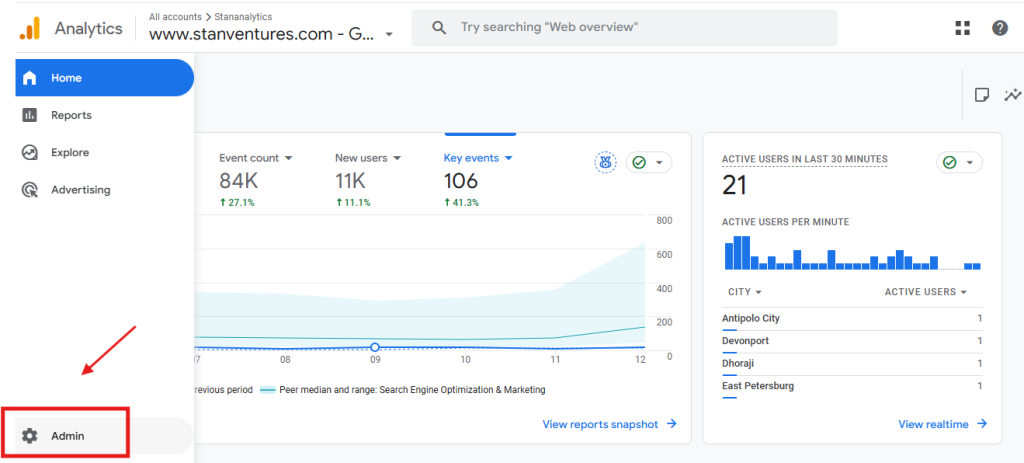
- Log in to your Google Analytics 4 account and open the correct property. Click Admin at the bottom left.
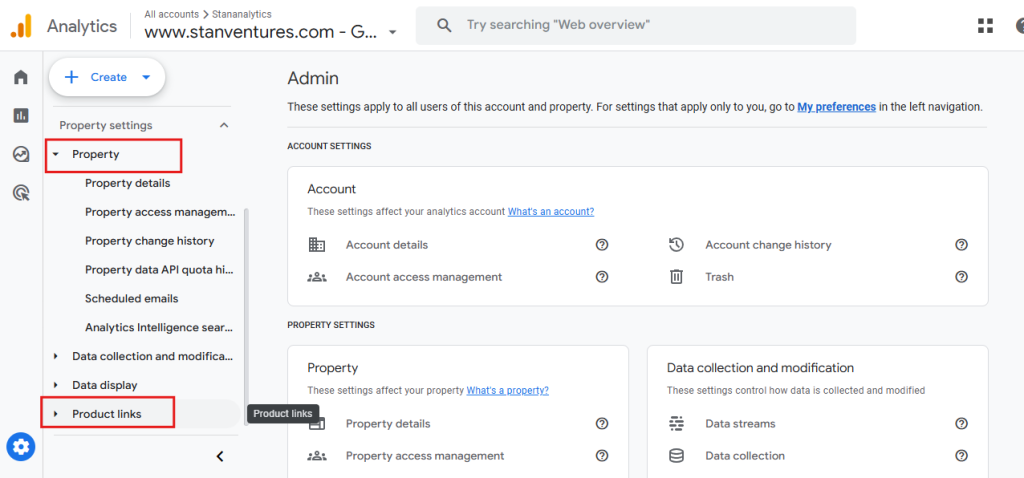
- In the Property section, Navigate to Product Links and select Search Console Links.
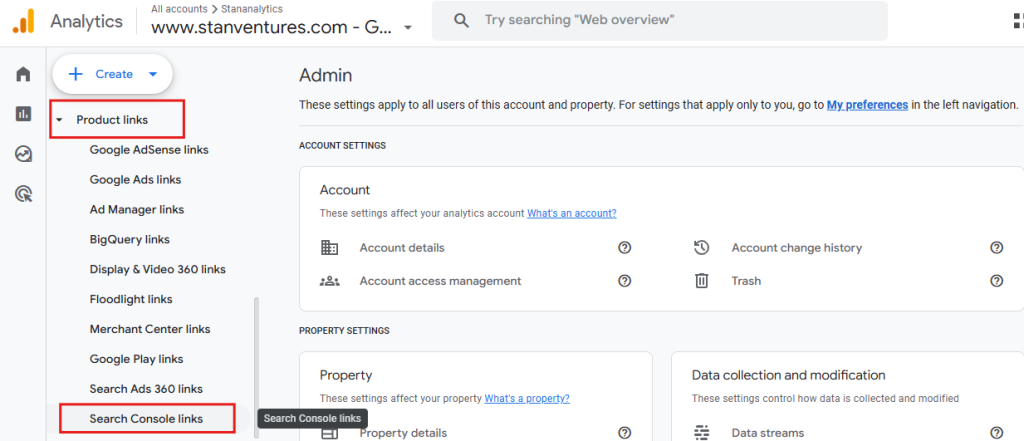
- Choose Search Console Links under the Product Links section.
- Click Link and then Choose Account to select the Google account that owns your Search Console property. Follow the prompts to finish the linking process.
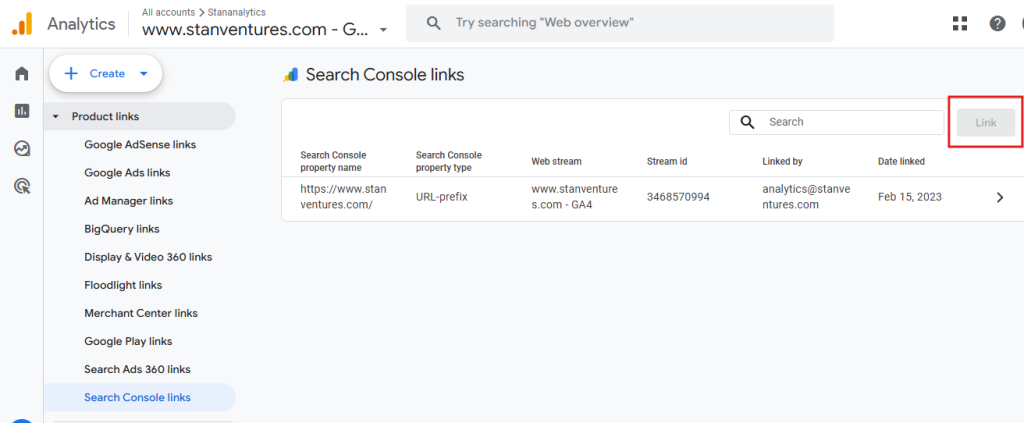
As Stan Ventures’ Google Analytics and Google Search Console accounts are already synced, I can see the particulars below. So will you once you finish linking your Google Analytics account to your Google Search Console account.
Step 2: View Organic Search Queries in Google Analytics
Once your Google Analytics account is linked to GSC, you can start tracking your organic keywords seamlessly. Here’s how.
- Navigate to the Reports section in Google Analytics.
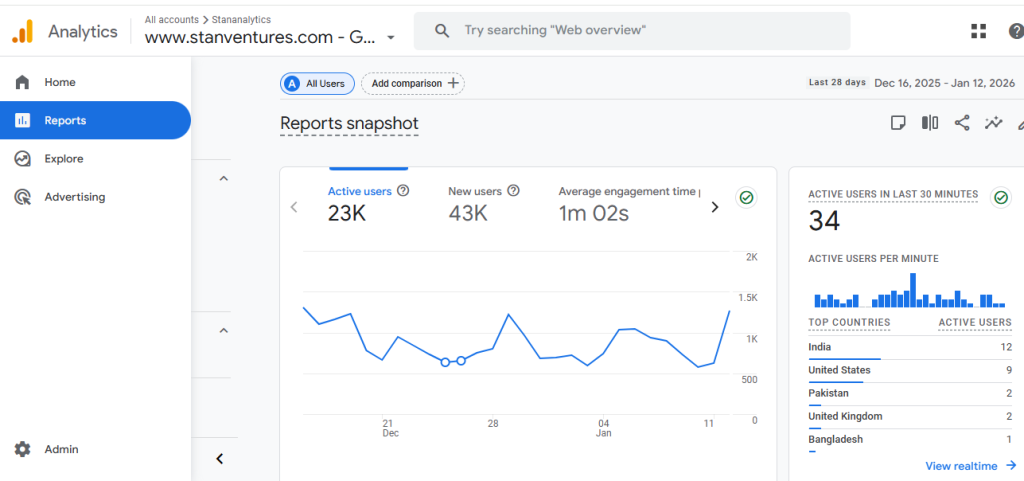
- Locate Search Console and choose Queries.
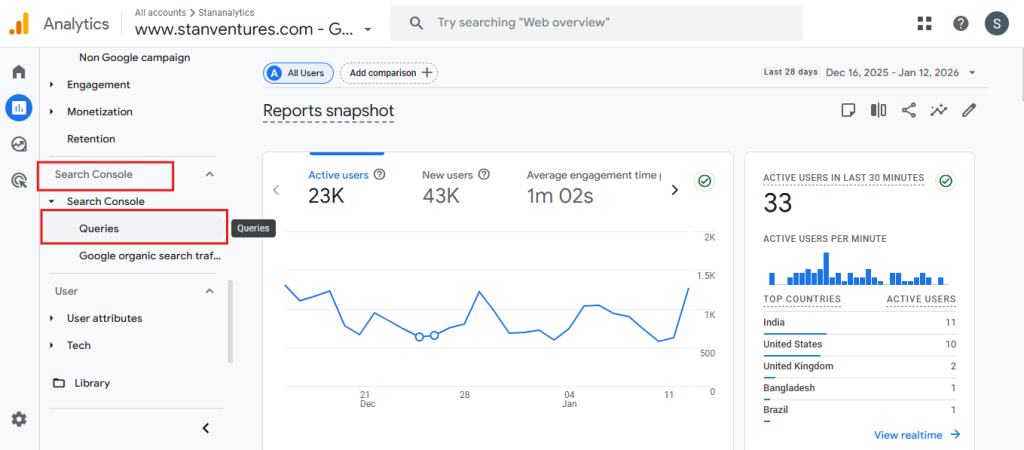
Note: If you don’t see the Search Console dropdown in the Reports section, it usually means the reports haven’t been published yet or the GSC–GA4 connection isn’t complete.
- The Queries report is where you can track your organic keywords in Google Analytics.
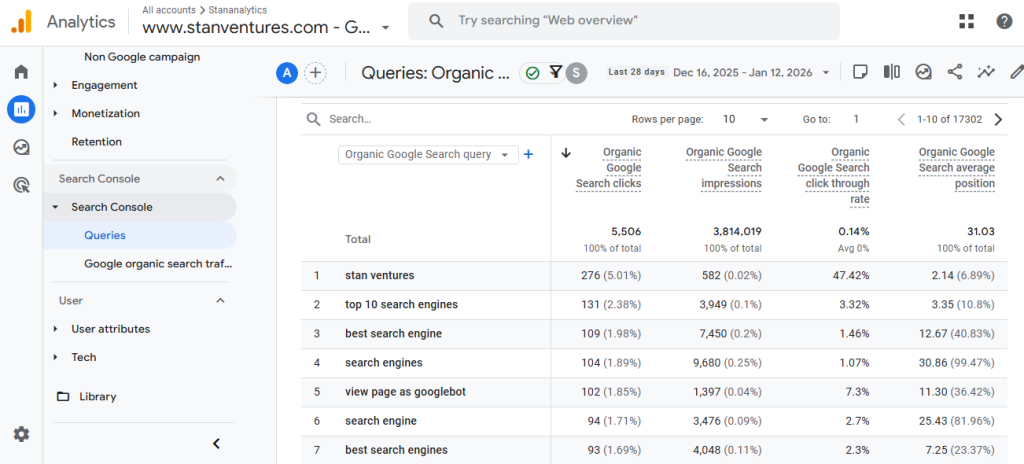
The report shows:
- Queries: The keywords people searched on Google
- Clicks: How many times users clicked through to your site
- Impressions: How often your site appeared in search results
- CTR: The percentage of impressions that turned into clicks
- Average Position: Your average ranking for each query
At this stage, your goal isn’t deep analysis. It’s to confirm:
- Queries are showing up
- Metrics are populating
- The data matches what you see in Search Console
Once that’s in place, you can move on to interpreting which keywords deserve more attention and which ones don’t.
How to Use Google Analytics Queries Report to Enhance Your SEO Strategy
- High impressions, low clicks: Identify queries with high impressions but low clicks to understand where visibility exists but engagement is weak.
- Average position analysis: Review average position to spot keywords ranking just outside the top results.
- Click-through rate (CTR): Monitor click-through rate (CTR) to evaluate how well your page matches search intent.
- Keyword trend comparison: Compare queries across date ranges to detect rising or declining keyword trends.
- Query-to-page relationship: Understand how multiple queries contribute to a single page’s organic traffic.
- Keyword prioritization: Prioritize keywords that drive meaningful engagement over those that only show rankings.
Tracking keywords using Google Analytics helps you move beyond rankings and focus on more realistic outcomes, driving growth for your business.
With Google Analytics, instead of treating keywords as standalone numbers, you evaluate them based on how they support your key pages, attract the right users and contribute to meaningful on-site actions. That shift makes it easier to separate keywords worth pursuing from those that only look good in reports.
When you approach keyword tracking this way, it stops being a routine check and becomes a practical way to streamline your SEO efforts in the right direction.
FAQs
Does Google Analytics show organic keywords by default?
No. Google Analytics does not display organic search queries by default. It features keyword insights, including impressions, clicks, click-through rates and average position, only when synced with Google Search Console.
Is Google Analytics enough for keyword tracking?
Google Analytics is useful for evaluating keyword performance in terms of engagement and conversions when linked to Google Search Console, but it does not replace tools designed specifically for rank tracking or competitive keyword analysis.
Why should I use Google Analytics for keyword tracking?
Keyword rankings only tell you where a page appears in search. On the other hand, Google Analytics shows what happens after users land on your site and helps you understand if that traffic actually leads to meaningful conversions for your brand.
How do I use Google Analytics data to build a stronger keyword strategy?
Use Google Analytics to identify which queries bring visibility but fail to earn clicks, and which ones attract qualified traffic. This helps you decide where to improve content, where to strengthen existing pages, and which keywords are not worth further effort.
How often is keyword data in Google Analytics updated?
Keyword-related data in Google Analytics updates at different speeds. Realtime reports refresh within minutes, but most standard reports take around 24 to 48 hours to fully process, which means the data reflects recent activity but may not be immediate.
How often should I track keywords in Google Analytics?
Keyword data in Google Analytics doesn’t need daily tracking. Reviewing it weekly or monthly is usually enough to spot trends, performance shifts and pages that need optimization.
About the author


Share this article


Want to Boost Rankings?
Get a proposal along with expert advice and insights on the right SEO strategy to grow your business!
Get StartedRelated Blogs


